Accounts
In order to use Pharma Portal, you must start by setting up an account.
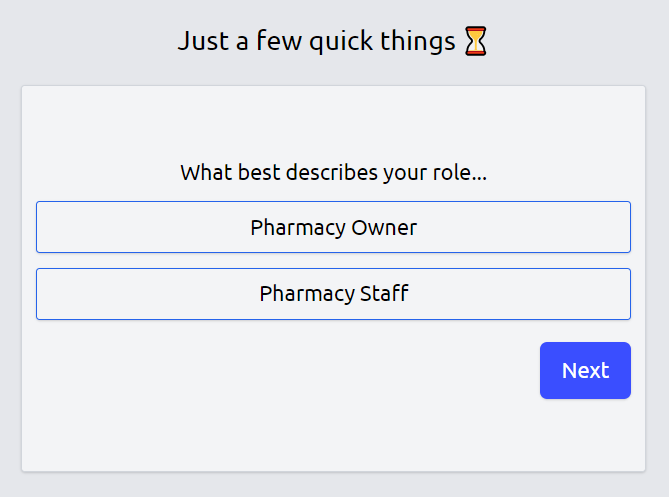
After logging in, you will be asked to provide your phone number, and pick what type of account you want to create. This does not lock you in or out of any activities, it just helps us personalise your experience. The types at the moment are:
- Pharmacy Owner
- Pharmacy Staff Member
Account Types
A pharmacy owner creates and manages pharmacies. They can view all reports, view staff lists, view staff actions, and view pharmacy details. Pharmacy owner's will also be able to manage deals, and get access to features first. Staff are apart of pharmacies, and can only view the pharmacies they are apart of.
Here is a pharmacy owner's visuals of pharmacy staff actions:
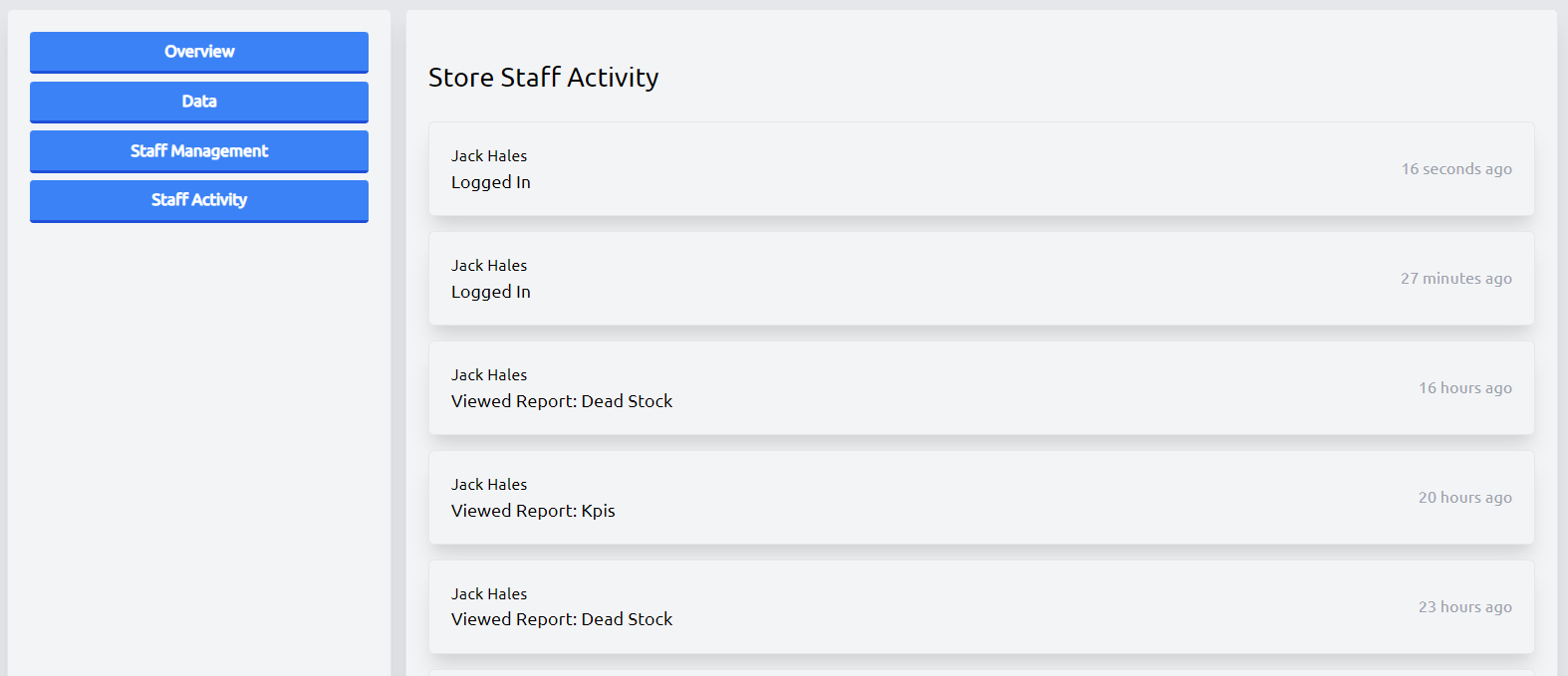
This page can be found my navigating from the stores page once you've set-up a pharmacy.
Group Onboarding
If you are a group manager, you have one of two options:
- Create an account for each of your pharmacies, and then invite the pharmacy owners and staff to join their respective pharmacies.
- Create individual accounts for each pharmacy, and distribute those credentials to the respective owners.
There is also group entities and high-level group reporting, which is a custom group feature.
Once you setup the accounts, read on to store creation to learn more about that process.
Store Creation
Once you've created an account, you can now create a store, or multiple stores. Nagivate to the store creation page, or alternatively click on your account drop-down, click "My Stores", and click "Create Pharmacy".
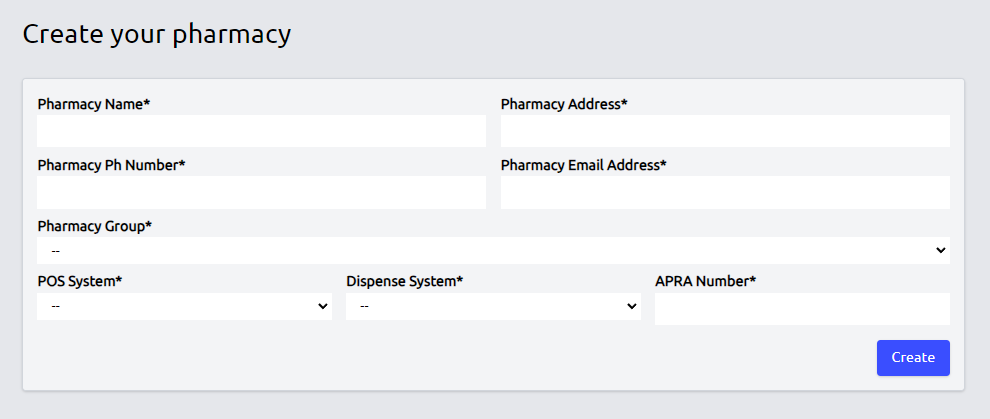
From here, you can fill in all the relevant details for your pharmacy and click "Create". You will be redirected to the pharmacy page, and placed on the extract installation page of the pharmacy management dashboard:
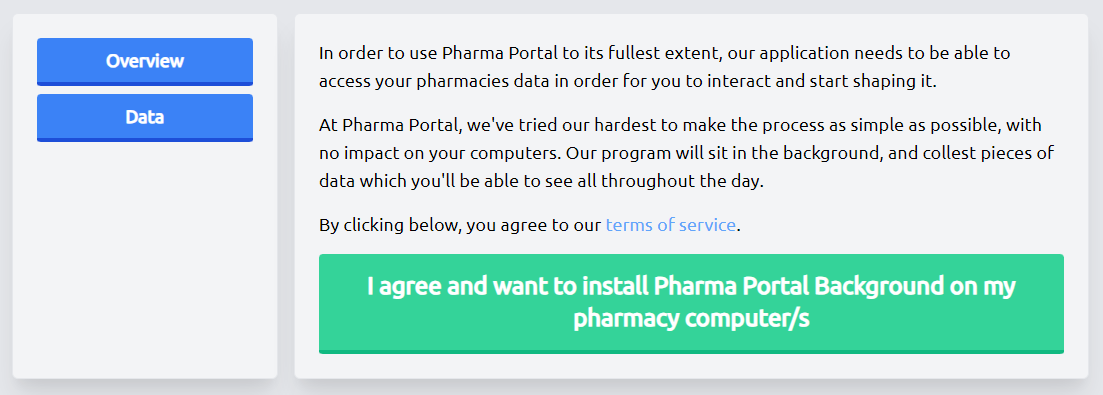
If you are not using a typical vendor (like Fred, Zed, Minfos, etc), you can skip this step if you are using another integration path.
Conclusion
That's it! You've successfully created an account, and a pharmacy. You can now start using Pharma Portal to manage your pharmacy, and view reports. If you've triggered the extract installation, someone from Pharma Portal will be in touch soon to help set-up the lightweight extract, and get you using our ever-expanding suite of helpful reports.